Workshop expenses and receipt scanning for Australian workshops
Workshop expenses and receipts, ready for GST
Record fuel, tools, rent, consumables and parts bought over the counter, with the photo or PDF kept on each expense. On Platinum, MechAxis reads the supplier, ABN, invoice number, lines and GST from the photo for you to check. On every plan you can enter an expense by hand.
In the working day
How it fits into the working day
The useful part is not another screen. It is what no longer needs to be checked, copied or explained twice.
Snap it, check it, save it
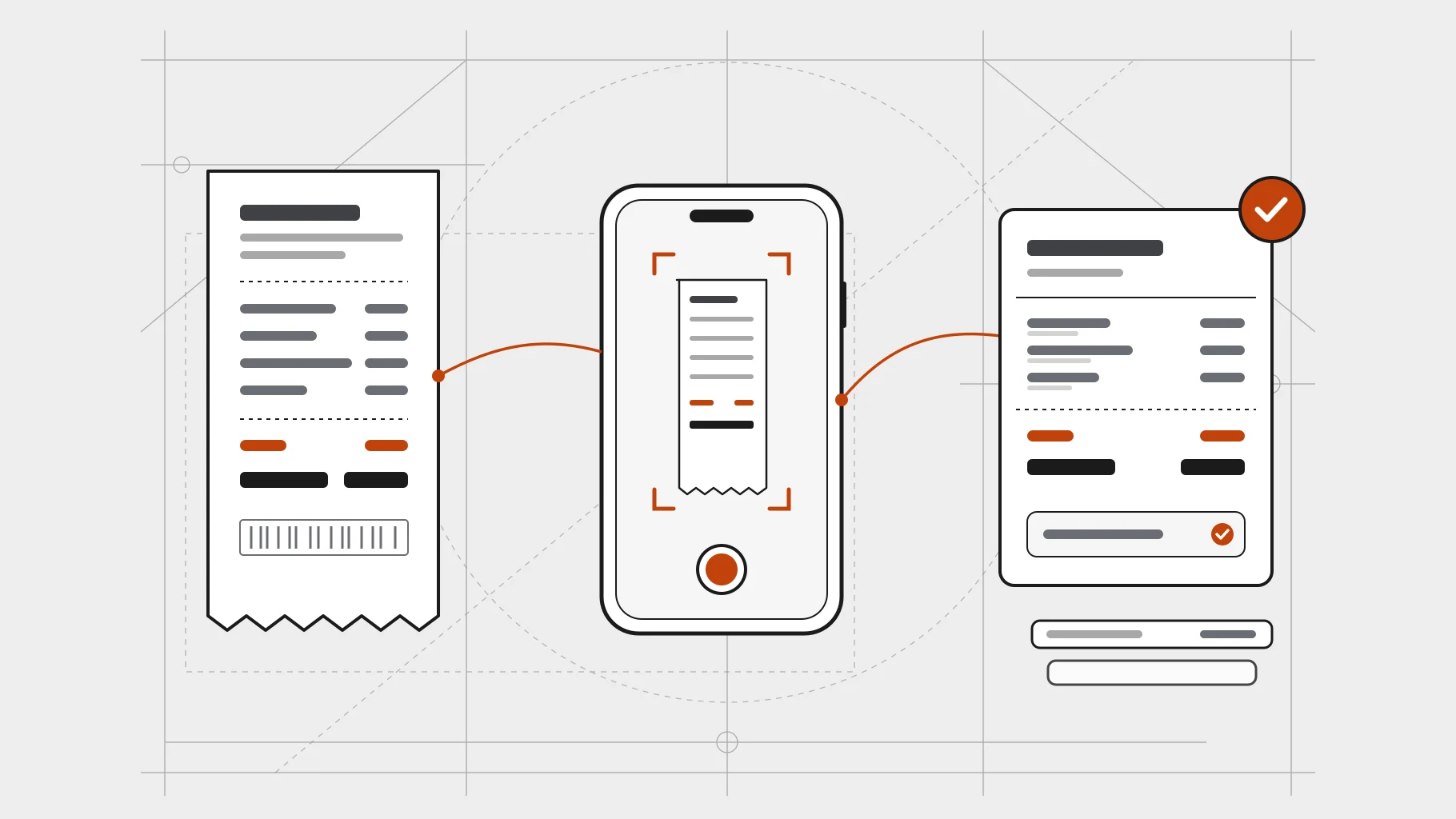
Take a photo or upload a PDF. On Platinum, MechAxis reads the supplier, ABN, invoice number, date, each line and the GST, then shows them beside the document for you to check before anything is saved. Nothing is confirmed without a person.
Checks that matter for a GST claim
The review points out an ABN that fails the ATO's check digits, a purchase over $82.50 with no tax invoice, a tax invoice of $1,000 or more without your business details, GST that isn't one eleventh, and an invoice already recorded.
Suppliers, purchase orders and your accountant
A new supplier on an invoice can be saved in one tick for next time. An invoice for parts you ordered is offered to its purchase order instead, so it isn't counted twice. The GST summary gives your accountant credits and purchase totals for any quarter, with a CSV download.
Photograph one receipt over $82.50 and one fuel docket. Confirm both.
Try this with two real receipts from this week: a supplier tax invoice over $82.50 and a small fuel docket. The aim is to see what the review checks before anything counts in your GST summary.
Have a team member send the receipts in
Ask a technician to choose Add expense, take a photo of each receipt and send it for review with a note saying what it was for. They see only the receipts they added.
Check each one against the document
Open To review. Compare the supplier, ABN, lines and GST with the photo beside them, choose a category for each line and save a new supplier when prompted. On Platinum the details are read for you; on other plans type them in.
Confirm, then look at the GST summary
Confirm both. In the GST summary, the tax invoice counts towards GST credits; a purchase over $82.50 without a tax invoice is listed as waiting on one.
The summary is a helper, not a lodged BAS
Check the GST treatment of anything unusual, such as bank fees or council charges, with your accountant. The GST summary gives them the totals and a CSV; they decide what goes on your BAS.
What a tax invoice needs before you claim the GSTHow expenses and receipt scanning work in MechAxis
Expenses are what the workshop buys outside a purchase order: fuel, consumables, small tools, rent, utilities, software and parts picked up over the counter. Each one keeps the supplier, ABN, GST and a copy of the invoice together, so the GST can be claimed and the record can be found again.
Built for the receipts that never reach the office
The receipts that go missing are rarely the big ones. They're the brake cleaner a technician grabbed on the way back from a job, the fuel for the ute and the monthly software bill. Anyone on the team can photograph a receipt into Expenses and send it for review; they see only what they added.
An owner, manager or accountant checks each one and confirms it. Confirmed expenses can still be corrected, and every change is recorded. Expenses are voided rather than deleted, so the record and its document stay for your tax records.
What the review checks
Before an expense is confirmed, the review points out the problems that stop a GST claim: a purchase over $82.50 with no tax invoice, a tax invoice of $1,000 or more without your workshop's name or ABN, an ABN that fails the ATO's check digits, GST that isn't one eleventh of the amount, and lines that don't add up to the invoice total.
It also stops the same invoice being counted twice. An invoice already recorded for the same supplier can't be confirmed again, and an invoice for parts on a received purchase order is offered to that purchase order instead.
Reading the invoice for you (Platinum)
On Platinum, MechAxis reads the supplier, ABN, invoice number, date, each line, the category it most likely belongs to and the GST from a photo or PDF. The result fills the review form beside the document, and a person checks it before anything is saved.
If a photo can't be read, the expense and its photo are still saved and the form opens empty for typing. Platinum includes a monthly allowance of scans; entering expenses by hand is on every plan.
From receipt to GST summary
Photograph or upload
Take a photo on a phone or upload a PDF from an emailed invoice. The file is saved straight away.
Check the details
Compare the supplier, lines and GST with the document. Save a new supplier in one tick.
Confirm
An owner, manager or accountant confirms it. It now counts in totals and the GST summary.
Hand the quarter over
Give your accountant the GST credits, purchase totals and a CSV of every line for any period.

More questions, answered
Which costs belong in Expenses rather than purchasing?+
Anything not on a purchase order: fuel, consumables, small tools, rent, utilities, insurance, software and parts bought over the counter. Parts you order for stock or a job are better on a purchase order, where the supplier bill is matched to what arrived.
Can expenses be split across categories?+
Yes. Each line has its own category, GST treatment and capital flag, so one invoice can cover consumables and a tool.
Who can see expenses?+
Owners, franchise admins, workshop managers, accountants, parts officers and auditors see every expense at their locations. Other staff see only the receipts they added.
30-day trial
Photograph a receipt and confirm it as an expense
30 days. No card required. Compare plans for feature availability after the trial.
Questions
Questions workshops ask
01Which plans include expenses?+
Recording expenses, with the photo or PDF attached, is on Silver, Gold and Platinum. Reading the invoice for you is on Platinum, with a monthly allowance of scans.
02Does it work with a phone camera?+
Yes. Choose Take a photo on a phone or tablet. Photos are resized for a clear read before upload, and PDFs from emailed invoices can be uploaded too.
03Can technicians add receipts?+
Yes. Anyone on the team can photograph a receipt and send it for review. They see only the receipts they added; an owner, manager or accountant confirms them.
04Can a confirmed expense be changed?+
Yes, by an owner, manager or accountant, and every change is recorded in the workshop's history. Expenses are voided rather than deleted, so the record and its document stay for your tax records.
05Does it lodge my BAS or sync to Xero?+
No. The GST summary is a helper for you or your accountant, and expenses don't sync to Xero yet. Supplier bills from purchase orders already do.
06What happens if a photo can't be read?+
The expense and its photo are still saved. The review opens with the boxes empty so you can type the details in, or try the photo again.
Keep looking
Explore another module
See the day by bay, technician and arrival time before the keys hit the counter.
Record what the technician found, show the customer, and turn approved work into tasks.
Give the floor a short, assigned work queue with tasks, time, notes and a clear finish point.
Quote and invoice the Australian way, with GST included in the price the customer sees.